
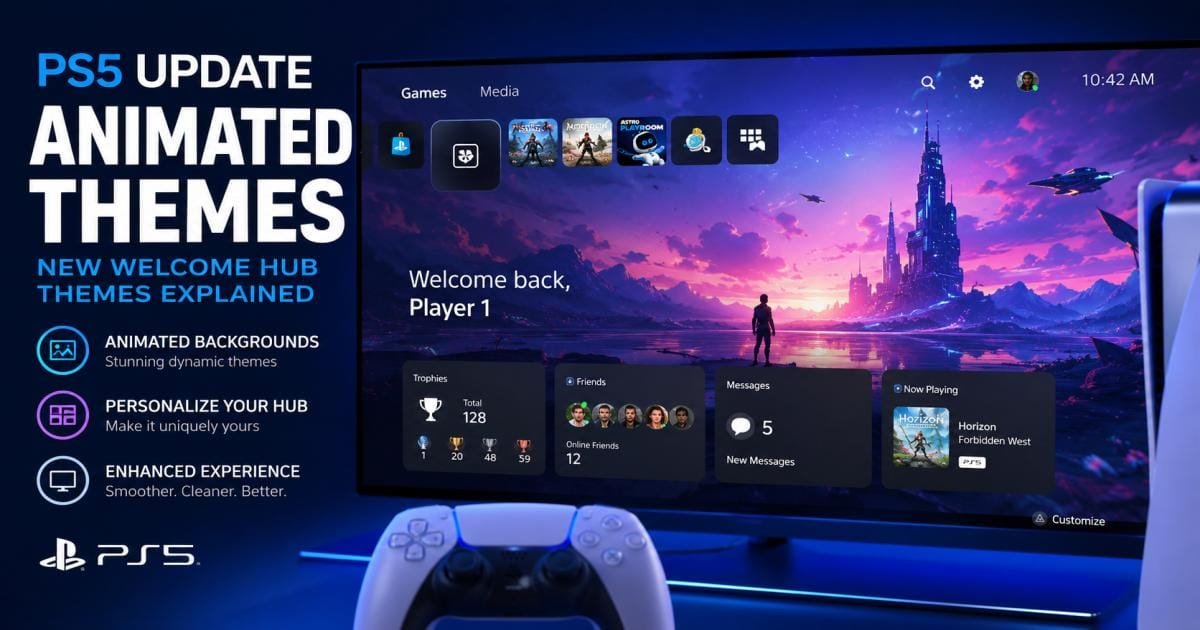

The animated theme PS5 update completely changes how your console looks the moment you turn it on. Sony replaced the static Explore tab with a new Welcome Hub, finally bringing moving backgrounds back to the PlayStation 5. If you missed the dynamic dashboards from the PS4 era, this system software patch gives you control over your home screen again. You can now combine animated game art with custom widgets, while new features like Showcase Mode protect OLED TVs from screen burn-in. Here is exactly how to set it up and customize your display.
What Is the Animated Theme PS5 Update?
For four years, the PlayStation 5 home screen reacted only to the game you currently selected. The animated theme PS5 update stops this automatic shifting by introducing the Welcome Hub. This dedicated space acts as your personal landing page. Instead of Sony choosing what you see, you select a moving background like a crackling winter fireplace or shifting PlayStation symbols to serve as your permanent dashboard backdrop.
This update also introduces a widget system. You can place battery trackers, storage monitors, and playtime stats directly over your chosen moving background.
What’s New in the Latest PS5 Welcome Hub Update?
Sony continually refines the system software. The latest iteration of the Welcome Hub includes several specific features designed to make the user interface faster and more personal.
Animated Welcome Hub Backgrounds
The primary addition is the moving background library. You no longer have to stare at a flat, gray screen. The dashboard now supports high-resolution looping video files. The initial launch included abstract shapes, but Sony quickly added specific game art, such as the Uncharted 10th-anniversary sequence and an animated Astro Bot scene.
New Personalization Options
You control the layout. The update includes a grid system where you can drag, drop, and resize widgets. You can prioritize a massive trophy tracker on the left side of your screen or keep everything small and tucked into the corners. On average, the UI update takes under three minutes to install, but you can spend hours tweaking the exact layout.
Improved Dashboard Experience
The system software now allows you to save layout presets. If you prefer a clean screen for weekend gaming but want a data-heavy screen showing your friends’ online status during the week, you can switch between these profiles instantly.
Showcase Mode Explained
Static widgets sitting over a moving background can cause image retention on certain TV’s. Sony solved this by introducing Showcase Mode to protect OLED TVs from screen burn-in. When enabled, your controller inputs dictate what happens on screen. If you leave the controller idle for a few seconds, the widgets fade out entirely. This leaves only your animated background playing, functioning much like a high-end screensaver.
Additional UI Enhancements
The update includes accessibility adjustments, such as bolder text options that ensure readability against busy, moving backgrounds. There is also a Slideshow Mode for players who prefer to cycle through their own in-game screenshots rather than using the official animated files.
Which PS5 Models Support the Animated Theme Update?
Sony built the Welcome Hub to function across the entire hardware lineup. You do not need the newest console to access these features.
PS5 Standard Edition
The original 2020 disc-drive model supports all animated themes perfectly. The hardware renders the moving backgrounds without dropping frames or slowing down active game downloads.
PS5 Digital Edition
The original digital-only console delivers the exact same experience. The lack of a disc drive does not limit any of the new user interface features.
PS5 Slim Models
The redesigned PS5 Slim models ship with firmware ready for the Welcome Hub. Once you connect to the internet and install the latest system software, the moving backgrounds become available immediately.
Future PS5 Pro Compatibility
The more powerful PS5 Pro handles the Welcome Hub with zero strain. The upgraded GPU ensures that heavy particle effects like snowstorms or floating sparks in the animated themes run perfectly at 4K resolution.
Regional Availability
Sony launched the Welcome Hub in the United States first, but the update is now active globally. As long as your console connects to the PlayStation Network, you can download the patch.
How to Enable Animated Themes on PS5
Setting up your new dashboard takes only a few button presses. Follow this exact sequence to activate your moving background.
Update Your Console
- Go to Settings.
- Select System.
- Choose System Software, then System Software Update and Settings.
- Download and install the latest firmware.
Navigate to the Welcome Hub
Turn on your console and go to the first icon on the far left of your home screen. This space previously housed the “Explore” feed.
Choose an Animated Theme
Look at the top-right corner of the screen and select the Change Background icon. Browse the available tabs and look for thumbnails marked with a small “Animated” tag in the corner. Select your preferred art to apply it.
Customize Widgets and Layout
Select the Edit Widgets button at the top of the hub. Use the Square button to move your info boxes around, or use the R1 and L1 bumpers to expand or shrink them.
Save Your Settings
Press the Circle button to exit editing mode. The PS5 automatically saves your widget layout and your chosen moving background.
Available Animated Themes in the PS5 Update
Sony categorizes the backgrounds to help you find specific art styles. The library expands regularly.
PlayStation Official Themes
These themes celebrate the hardware. You will find abstract flowing lines, floating classic controller icons (Triangle, Circle, Cross, Square), and retro-inspired designs that mimic the original PS1 or PS2 startup screens.
Game-Inspired Animated Themes
PlayStation Studios provides moving cover art for major releases. Current options include dynamic scenes from Stellar Blade, Ghost of Yōtei, and The Last of Us.
Seasonal and Limited-Time Themes
Sony offers a dynamic Seasonal theme that actively changes based on the real-world calendar. If you select this option, you will see falling leaves in October and a snowy landscape in December. The winter variation even includes soft, crackling audio of a fireplace.
Future Theme Expansions
Historically, Sony releases a new Welcome Hub theme alongside every major first-party game launch. Check the background menu monthly to find newly added art.
Can You Create Custom Animated Themes on PS5?
No, you cannot upload your own video files or create custom animated themes. The PS5 system restricts moving backgrounds to the official files provided by Sony. However, you can use your own custom static images. By taking an in-game screenshot, you can apply it as your background and use Slideshow Mode to rotate through a gallery.
Animated Themes vs PS4 Themes: What’s Different?
The new system operates differently than the classic PS4 theme store. The current approach focuses strictly on the landing page rather than the entire console interface.
Customization Features
PS4 themes altered the background, app icons, and system sounds across every menu. The PS5 animated theme only changes the backdrop of the Welcome Hub. Your game icons remain standard.
Dynamic Animations
A PS4 theme stayed on screen regardless of where you scrolled. On the PS5, the moving background vanishes as soon as you scroll right to highlight a specific game, replacing the screen with that game’s specific promotional art.
Background Music
Most premium PS4 themes featured custom soundtracks. Currently, most PS5 animated themes remain silent, though recent additions like the winter fireplace prove Sony is experimenting with background audio.
Interface Design
PS4 themes occasionally caused menu lag because they relied on heavy, unoptimized files. Sony tightly controls the PS5 Welcome Hub to guarantee the dashboard remains fast and responsive.
User Experience Comparison
The PS5 approach keeps the interface clean. You get beautiful art upon booting up, but the dashboard stays uncluttered when you actively search for a game to launch.
Benefits of the Animated Theme PS5 Update
This update makes your console feel active. Seeing moving water or floating particles is visually superior to a static gray menu. It also provides actual utility. By combining the moving art with custom widgets, you build a dashboard that shows you exactly what you care about, whether that is your storage space or your controller battery.
Most importantly, it protects your hardware. By enabling Showcase Mode, the PS5 fades out static widgets after a few seconds of inactivity, which is essential to protect OLED TVs from screen burn-in. The animated art keeps pixels refreshing while you step away from the screen.
Common Problems and How to Fix Them
You might encounter minor issues during the setup process. Here are the typical causes and quick solutions.
Animated Themes Not Showing
If the “Animated” tags are missing from the background menu, your console is likely offline. The PS5 requires an internet connection to load the current list of available themes from Sony’s servers.
Update Not Available
If your system settings show no available updates but the Welcome Hub is missing, perform a hard reset. Turn the PS5 completely off (do not use Rest Mode), unplug it for 30 seconds, and restart it. This forces the console to request the latest UI patch.
Welcome Hub Missing
Ensure you are logged into your primary PlayStation Network account. Guest profiles or offline accounts often default to the older, standard user interface.
Theme Not Loading
If your selected moving background results in a black screen, the file failed to pull from the cache. Apply a standard, static image, wait five seconds, and select the animated theme again.
Performance Concerns
The moving backgrounds do not negatively impact your games. The PS5 operating system suspends the Welcome Hub animations the exact millisecond you launch a title, ensuring full processing power goes to your gameplay.
Tips to Get the Best Experience with Animated Themes
- Turn on Showcase Mode: Hide your widgets automatically by enabling this feature in the Welcome Hub settings. This is the best way to enjoy the art while protecting OLED TVs from screen burn-in.
- Use the Seasonal Theme: Let the console do the work for you. By choosing the Seasonal theme, your background will automatically change to match the real-world calendar, giving you snow in winter and bright skies in summer without manual adjustments.
- Minimize Widget Size: Shrink your info boxes using the L1 button. Smaller widgets leave more screen space to display the actual moving artwork.
- Use the Activity Tracker: Place the playtime tracker widget in the bottom corner. It gives you an exact breakdown of the hours you spent on your most-played games over the past week.
Frequently Asked Questions (FAQ)
What is the animated theme PS5 update?
The animated theme PS5 update is a system software patch that replaces the Explore tab with the Welcome Hub, allowing you to set moving, dynamic video backgrounds on your main dashboard.
Is the animated theme PS5 update free?
Yes, the firmware update and all official animated backgrounds provided by Sony are entirely free.
Which countries have received the update?
The update is currently live globally. Any user with a connected PlayStation Network account can download it.
Can I use my own animated wallpapers on PS5?
No. While you can set custom static screenshots from your games as a background, fully animated themes must be selected from Sony’s official, pre-approved list.
Are animated themes available on every PS5 model?
Yes, the moving backgrounds run perfectly on the standard PS5, Digital Edition, Slim models, and the PS5 Pro.
Do animated themes affect gaming performance?
No. The console suspends all dashboard animations instantly when you launch a game, preventing any frame rate drops or performance issues.
How do I enable Showcase Mode?
Navigate to the Welcome Hub, select the Settings gear icon in the top right corner, and toggle Showcase Mode to the “On” position to make widgets fade away when idle.
Final Thoughts on the Animated Theme PS5 Update
The animated theme PS5 update brings much-needed personality back to your dashboard. By replacing the static Explore tab with a customizable Welcome Hub, Sony finally gives you total control over the first thing you see when booting up your system.
Whether you prefer the cozy ASMR audio of a crackling winter fireplace, the high-energy motion of Uncharted art, or the simple aurora borealis night sky, the layout is yours to design. Combine these moving backgrounds with custom widgets to track your storage space, controller battery, and recent playtime stats directly on the home screen.
More importantly, this visual upgrade serves a highly practical purpose. By relying on Showcase Mode to fade out static widgets when you step away from the controller, you get to enjoy beautiful looping video while actively protecting OLED TVs from screen burn-in. Check your system settings, download the latest firmware, and build a home screen that fits your exact gaming style.





[…] soon as gaming news outlets reported on Sony’s internal naming update, content creators jumped on the news. To maximize views, many designed sensationalized thumbnails […]