

TGArchiveConsole, also known as tg-archive, is a Python command-line tool that syncs Telegram group messages and saves them as a browsable, searchable HTML archive on your own machine.
How to update TGArchiveConsole: Open your terminal, go to your installation folder, and run git pull. Then refresh the dependencies with pip install -r requirements.txt –upgrade. If you installed it through pip, just run pip install –upgrade tg-archive, and you’re done.
This guide covers all three update methods, what to back up before you start, how to check everything worked, how to fix the most common errors, and a few habits that keep the tool running well month after month. It covers Windows, macOS, Linux, and Docker.
Why You Must Keep TGArchiveConsole Updated
Outdated versions of TGArchiveConsole don’t just miss new features. They can break completely, and when they do, they don’t always explain why. A sync runs, nothing comes through, and you’re left guessing.
Telegram MTProto API Changes Break Older Versions
Telegram uses its own messaging protocol called MTProto. It gets updated regularly, and when it does, tools built on top of it need to catch up. If your version of TGArchiveConsole is old, it may stop authenticating, stop pulling messages, or stop syncing media without throwing any obvious error. You’ll notice your archive hasn’t changed in days, but the tool reports no problem. That’s what happens when the protocol moves on without you.
Security Fixes and Bug Patches
Every new release fixes something real. For tg-archive, past releases have addressed broken session handling, media downloads that would stall halfway through, and database write errors during long syncs. Older builds also tend to quit on network failures without writing anything to the log. Newer versions handle those situations better and keep your Telegram credentials safer in the process.
New Features Lost on Outdated Builds
Running an old version means missing out on real improvements: faster incremental syncs that only pull what’s new, better HTML output, improved media handling, and more stable archive builds. If you’ve been on the same version for a few months, some of these changes likely apply to you.
Warning Signs Your Version Is Already Out of Date
Watch for these before your next sync:
- New messages from active channels aren’t showing up
- The tool runs and exits with no output at all
- Media files are missing from archives that should include them
- Authentication started failing when it wasn’t before
- Your built site looks broken or doesn’t match your config
Any of these usually points to an outdated version.
Pre-Update Checklist: Do This Before You Update
A few minutes here can save you a lot of recovery work later. Don’t rush past this.
Step 1: Back Up Your Archive Database
Your messages live in a file called data.sqlite inside your site directory. Before you run any update command, copy this file and the entire site folder to a backup location outside the project. If a schema migration fails or something goes wrong during the update, this backup gets you back to where you were.
Step 2: Save Your Session and Config Files
Two files matter most before any update.
The first is session.session. This holds your active Telegram authentication. If it gets deleted or overwritten, you’ll have to log in to Telegram again and go through the verification process.
The second is config.yaml. This contains your api_id, api_hash, and all your archiving settings. Losing it means reconfiguring everything from scratch.
Both files sit in your site directory alongside the database. Copy them to your backup folder before updating. Leave the originals where they are.
Step 3: Check Your Current Version
There’s no point updating if you’re already on the latest. Run:
pip show tg-archive
This shows the version you have installed. Then check the Releases page at github.com/knadh/tg-archive to see what’s current. If the numbers match, you’re good. If not, move on.
Step 4: Check Python and pip Are Ready
TGArchiveConsole runs on Python and has been tested and confirmed working on Python 3.13. Run this to check your version:
python –version
Then make sure pip is up to date before upgrading anything else:
pip install –upgrade pip
Also, check that you have enough free disk space, especially if your archives include a lot of media. Running out of space mid-sync can leave your database in a broken state that’s annoying to recover from.
How to Update TGArchiveConsole: Step-by-Step
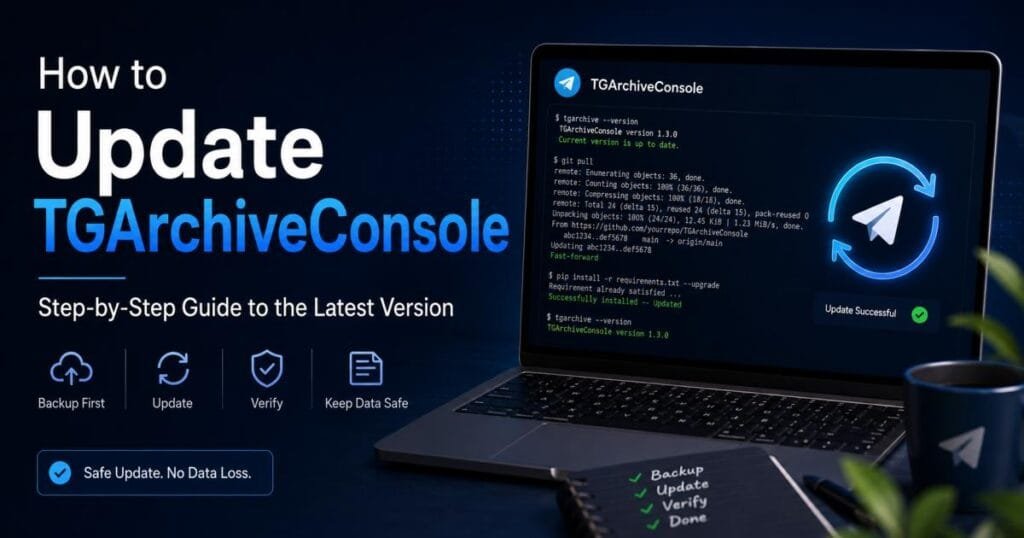
There are three ways to update. Use whichever matches how you installed the tool.
Method 1: Update via Git (Most Common)
If you cloned the repository from GitHub, this is the best way. It pulls the latest changes directly from the source.
Step 1: Open your terminal and navigate to the tg-archive folder.
cd ~/tg-archive
Step 2: Pull the latest commits.
git pull
If you see “Already up to date,” nothing changed, and you’re done. If files were updated, keep going.
Step 3: Upgrade the dependencies to match the new version.
pip install -r requirements.txt –upgrade
Step 4: Quickly check that config.yaml and session.session are still in your site directory. A git pull shouldn’t touch them if they’re in .gitignore, but it’s worth a glance before running anything.
Method 2: Update via pip
If you installed tg-archive through pip, updating takes one command:
pip install –upgrade tg-archive
Before you run that, I’d recommend using a virtual environment. It keeps tg-archive’s dependencies separate from everything else on your machine, so version conflicts don’t become your problem.
If you don’t have a virtual environment yet, here’s how to set one up and update inside it:
python -m venv tgenv
source tgenv/bin/activate # macOS and Linux
tgenv\Scripts\activate # Windows
pip install –upgrade tg-archive
Once you’re inside a virtual environment, other Python packages on your system can’t interfere with tg-archive’s setup.
Method 3: Manual Update via GitHub Releases
This works if you don’t use Git or pip and prefer to download releases directly.
Step 1: Go to github.com/knadh/tg-archive and click on Releases.
Step 2: Download the latest version release as a ZIP file.
Step 3: Extract it to a temporary folder.
Step 4: Copy the new files into your tg-archive directory. Replace the core scripts and the tgarchive folder. Do not replace your site directory, config.yaml, session.session, or data.sqlite. Those files are your data and your settings. Overwriting them means starting over.
Platform-Specific Notes
Windows (PowerShell)
Use PowerShell instead of the old Command Prompt. If Python isn’t recognised as a command, you need to add it to your PATH. You can do this through System Environment Variables, or by reinstalling Python with the “Add Python to PATH” checkbox ticked during setup. If pip throws a permission error, run PowerShell as Administrator.
macOS (Homebrew and Python Path)
If you installed Python through Homebrew, the binary lives at /opt/homebrew/bin/python3. Before creating or activating a virtual environment, run which python3 to confirm which Python version is actually active. The system Python on macOS is older and not what you want to use here.
Linux (Permissions and Service Restart)
Work inside a virtual environment to avoid needing sudo with pip. If tg-archive runs as a system service on your machine, restart it after updating:
sudo systemctl restart tg-archive
Also, confirm the tool has read and write access on the directory where your site and database files live.
Docker (Preserve Data Volumes)
Pull the latest image to update:
docker pull knadh/tg-archive:latest
Before doing this, make sure your site directory, database, config, and session files are stored in mounted volumes, not inside the container. Data inside a container disappears when you replace the image. Volumes survive the swap.
Post-Update Verification
Don’t assume the update worked because nothing crashed. These checks take two minutes and confirm things are actually in order.
Run Version Check to Confirm Update Success
Right after updating, run:
pip show tg-archive
The version listed should now match the latest release on GitHub. If it still shows the old version, the update didn’t apply successfully. This usually means a different Python environment was active during the upgrade. Activate the right virtual environment and run it again.
Test Incremental Backup on a Small Chat First
Before syncing your main archive, run a test on something small and low-stakes:
tg-archive –sync
Point this at a quiet channel or a small group. Watch the output as it runs. If it finishes cleanly with no schema errors or warnings, the update is working, and you can move on to the full sync.
Confirm Session and Config Files Are Still Intact
Open your site directory and make sure both config.yaml and session.session are present. Open the config file and check that your api_id and api_hash are still correct. The simplest way to verify the session is to run tg-archive –sync. If it connects to Telegram without asking you to log in again, the session is intact.
Review the Changelog Before Running a Full Archive
Check the release notes on GitHub before running any large sync. Changelogs tell you if any commands changed, if the config format has new required fields, or if known issues exist in the new build. Two minutes of reading now can prevent a confusing problem mid-archive.
Troubleshooting Common Update Errors
“Session File Invalid” or “Auth Key Unregistered”
This means Telegram doesn’t recognise your current session anymore. It can happen when a major update changes how the session file is structured. The fix is quick:
- Delete only the session.session file from your site directory
- Run tg-archive –sync
- Enter your active phone number, and the verification code Telegram sends you
Your database and config stay untouched. You’re just refreshing the authentication token.
Dependency Conflicts: Fix With a Virtual Environment
If you’re seeing version mismatch errors like “package X requires Y, but Z is installed,” the cleanest fix is a fresh virtual environment:
python -m venv tgenv
source tgenv/bin/activate
pip install tg-archive
Starting fresh gives the tool a clean Python setup where nothing else can conflict with it.
Database Migration Failures: Restore From Backup
If you get errors like “no such column” or something about an unexpected table structure, the new version changed the database schema, and the migration didn’t finish properly. This is why you made that backup before starting.
Swap the broken data.sqlite with your backup copy. Then check the GitHub issues page for the version you updated to. Schema problems get reported and patched quickly by the community. Once a fix lands, try the update again with your backup still at hand.
“Module Not Found” After Updating
A dependency didn’t install completely. Run this again:
pip install -r requirements.txt –upgrade
If the error names a specific module, install it directly:
pip install <module-name>
Also, double-check that you’re running tg-archive inside the same virtual environment where you just installed the update. If you have multiple Python environments set up, it’s easy to run the tool under the wrong one.
Update Hangs or Freezes Mid-Process
If git pull or pip install stops responding, wait a few minutes before you do anything. Slow connections can make large downloads look frozen when they’re actually still working. If it’s genuinely stuck:
- Press Ctrl+C to cancel safely
- Clear the pip cache: pip cache purge
- Run the install command again
For a hanging git pull, check your internet connection and confirm outbound port 443 isn’t blocked on your network.
Expert Tips for Long-Term Maintenance
Automate Incremental Archiving With a Cron Job or Task Scheduler
Manual syncing is easy to forget for days or weeks. A cron job on Linux or macOS keeps your archive fresh without any input from you:
0 2 * * * cd /path/to/mysite && tg-archive –sync && tg-archive –build >> /var/log/tgarchive.log 2>&1
This syncs and rebuilds the static site every night at 2 a.m., then writes the result to a log you can check later. On Windows, Task Scheduler works the same way. And if the sync gets interrupted, it picks up where it left off next time.
Manage Large Media Folders Without Filling Your Disk
Media builds up fast in busy groups. Open your config.yaml and check what media download options are enabled. Turn off types you don’t actually need. If local storage is tight, point your site directory to an external drive or a larger volume. Clearing old or duplicate export files regularly takes five minutes and avoids the much worse problem of a corrupted database caused by a mid-sync disk failure.
Pin Stable Dependency Versions After a Clean Update
Once a version of tg-archive is running cleanly, save your dependency state:
pip freeze > requirements-locked.txt
Keep this file with your project. If a future update causes problems, you can restore a known-good setup fast by installing from this file. It’s a small habit with an outsized payoff.
Always Test on a Dummy Channel After Major Version Jumps
When a release involves big changes, run it on a throwaway channel before touching your real archives. Create a fresh test site:
tg-archive –new –path=testsite
Point it at a low-activity channel and run a sync. If something breaks here, no real data was touched.
Frequently Asked Questions
Q1. Will updating delete my existing archived messages?
No. Updating replaces the tool’s code only. Your data.sqlite database, media files, and previous exports stay exactly as they are, as long as you don’t delete them during the process.
Q2. How often does TGArchiveConsole release new updates?
There’s no set schedule. Updates come through when bugs get fixed, Telegram API changes require a patch, or community contributors submit improvements. Checking the GitHub Releases page once a month is enough to stay current. You can also watch the repository to get notified automatically.
Q3. Can I downgrade if the new version breaks something?
Yes. With Git, check out the previous tag:
git checkout v<previous-version-number>
With pip, install the specific version you want:
pip install tg-archive==<version-number>
All available version numbers are listed on the tg-archive page at pypi.org.
Q4. Why is my API key or session failing after the update?
The most common reason is a changed session format in the new release. Delete session.session from your site directory and run tg-archive –sync to log in again. Your api_id and api_hash in config.yaml are not affected. Only the session file needs to be regenerated.
Q5. Do I need to re-enter Telegram credentials after updating?
Not usually. Your api_id, api_hash, and phone number stay in config.yaml and aren’t touched by an update. The only time you’d need to re-authenticate is if session.session gets deleted or stops working, which can happen after a major version change.
Q6. What is the difference between updating and upgrading TGArchiveConsole?
Most people use both words to mean the same thing, and practically, they do mean the same thing here. If you want a technical distinction: an update is typically a small patch release, while an upgrade is a major version with bigger changes. The commands you run are identical either way. The only real difference is that a major version jump deserves a careful test before you run it on your real archives.
Q7. Does TGArchiveConsole still work after a Telegram API change without updating?
Sometimes, briefly. Minor Telegram changes don’t always break things right away. But when Telegram makes a real change to its MTProto protocol, older versions of tg-archive eventually fail to authenticate or stop pulling messages properly. It’s not something you can rely on long-term.
Final Thoughts
Updating TGArchiveConsole comes down to four things: back up your database and session file, run the right update command for your setup, reinstall your dependencies, and test on a small channel before running a full sync. The backup is the step most people skip, and it’s also the step that matters most when something goes wrong. Build that habit, and every update after this one becomes quick and uneventful.
If this guide helped you, bookmark it, share it with someone else who uses tg-archive, or drop a comment below if you hit something it didn’t cover.





[…] Verify that your base pinball game software is updated to the latest version. […]